
Create your account
An e-mail, a six-digit code, two questions: your account receives its first tenders within three minutes.
An e-mail, a code, two questions: in three minutes your free account receives the tenders in your sectors, out of the 4 notices open today in your country. No password and no bank card.
Open your account
Go to app.sangobids.com/register, or install the app. The same screen is used to sign up and to sign back in.
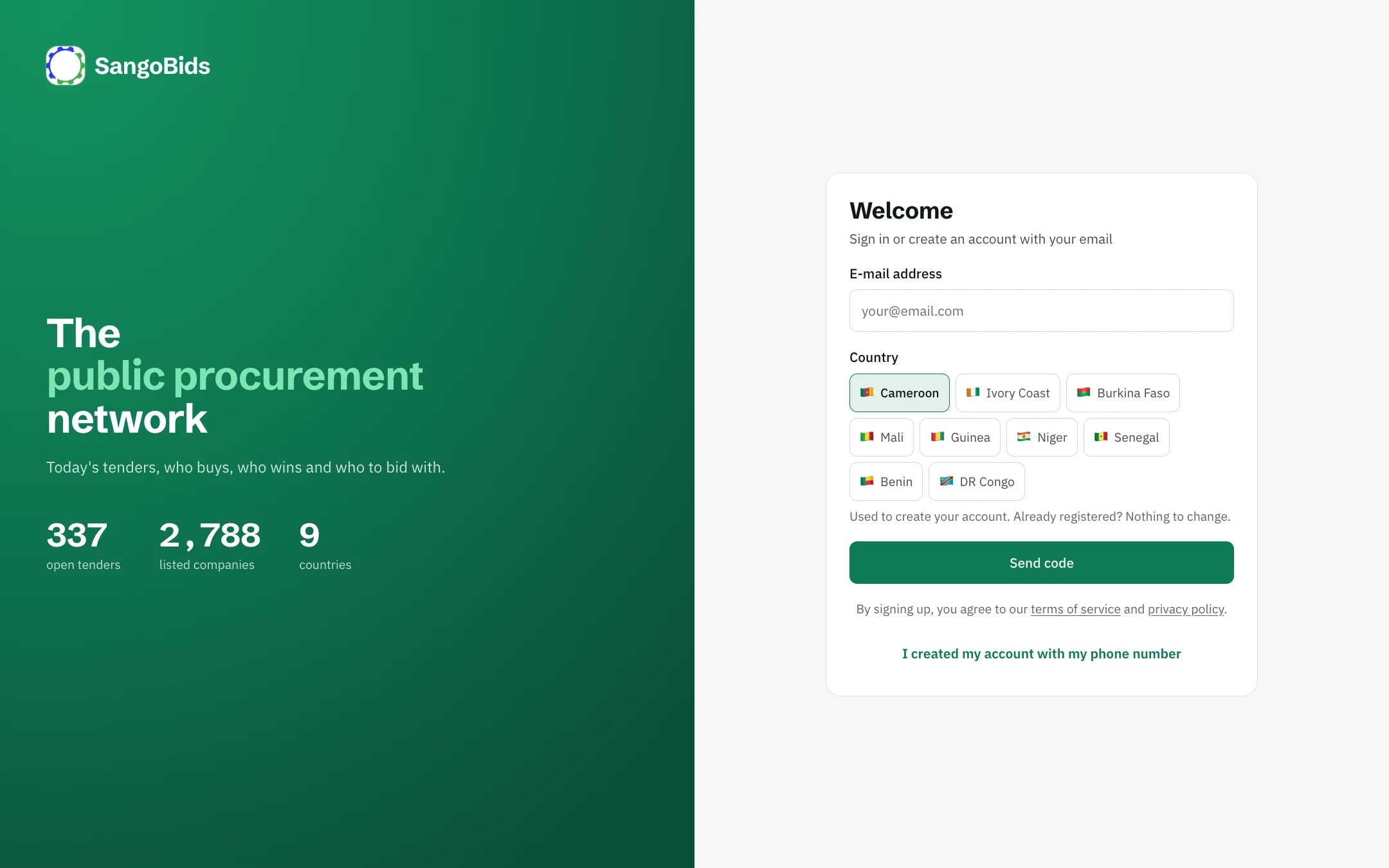
Computer
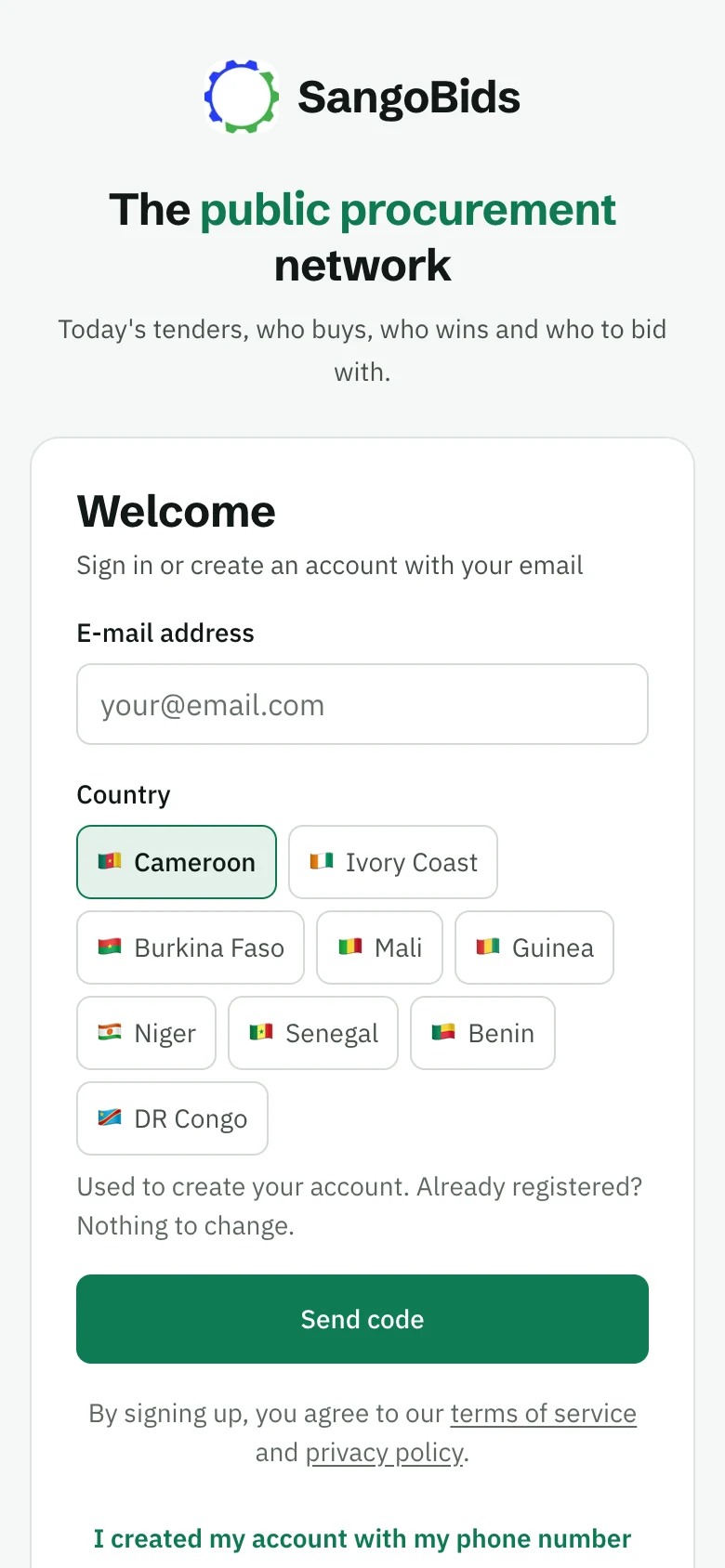
Phone
Enter your e-mail address
Use the one you read most: your alerts and deadline reminders will go there.
Choose your country
It decides which tenders you see, the currency and the documents required. You can change it later in Settings.
Tap Send code
A six-digit code goes out by e-mail and stays valid for 15 minutes. Nothing after a minute? Check your spam folder, then tap Resend code.
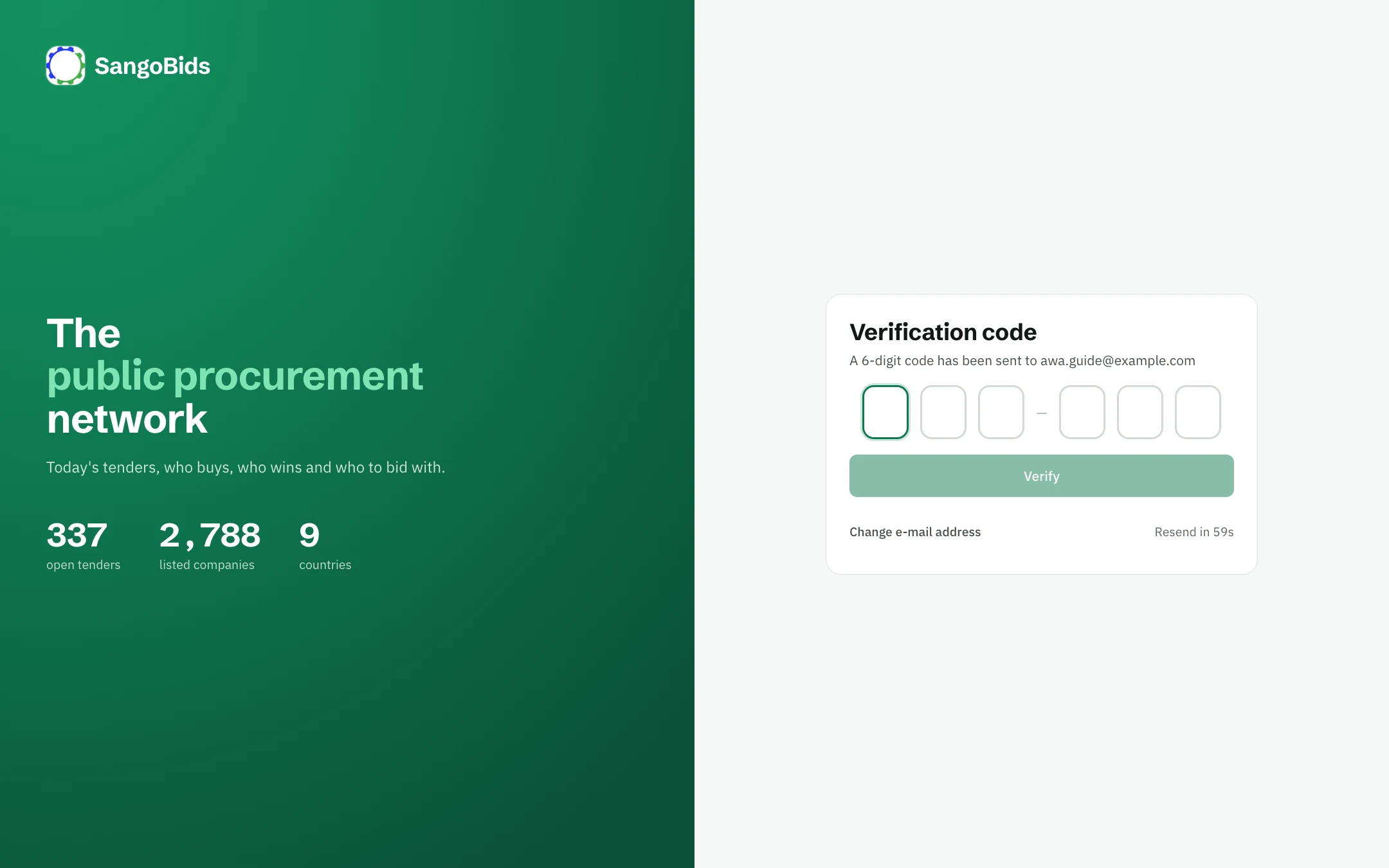
Computer
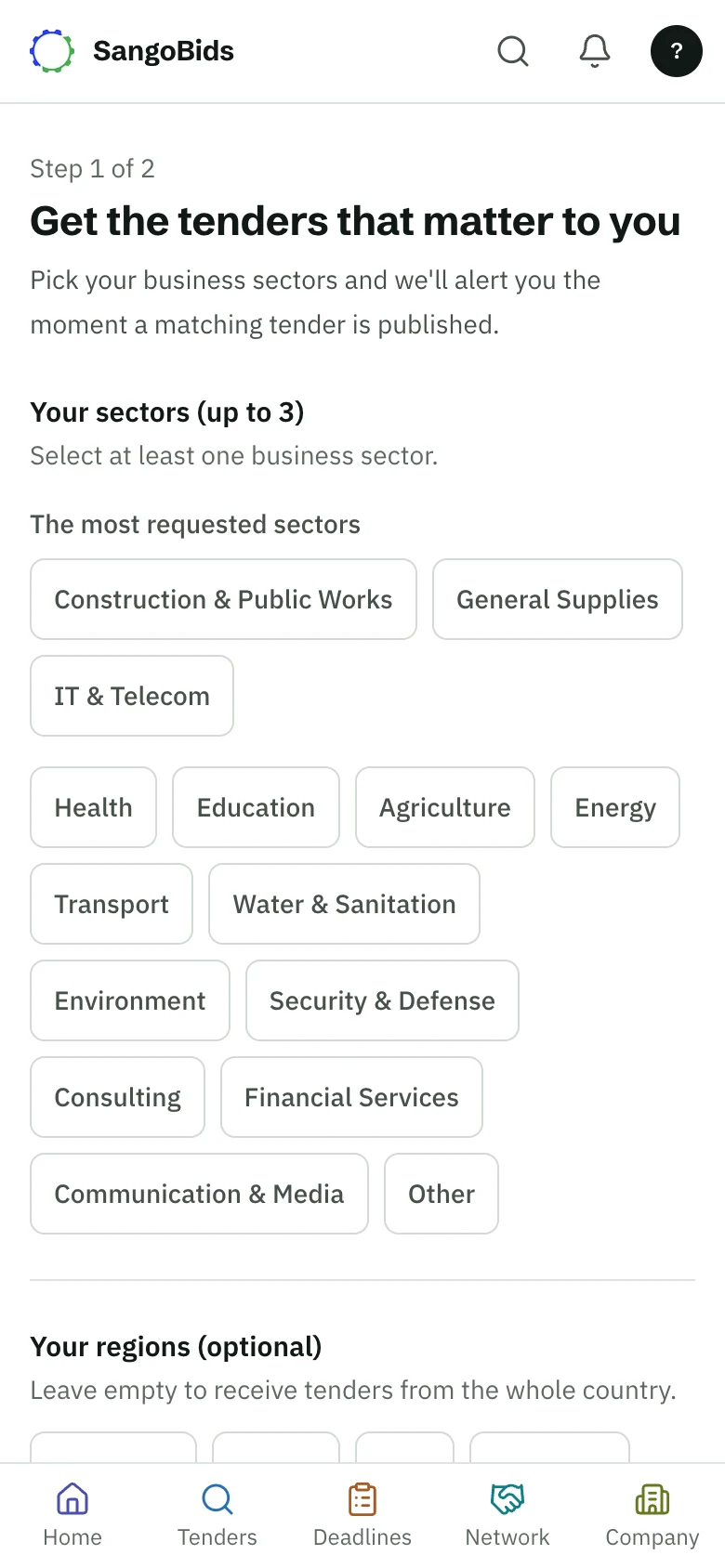
Say what you sell
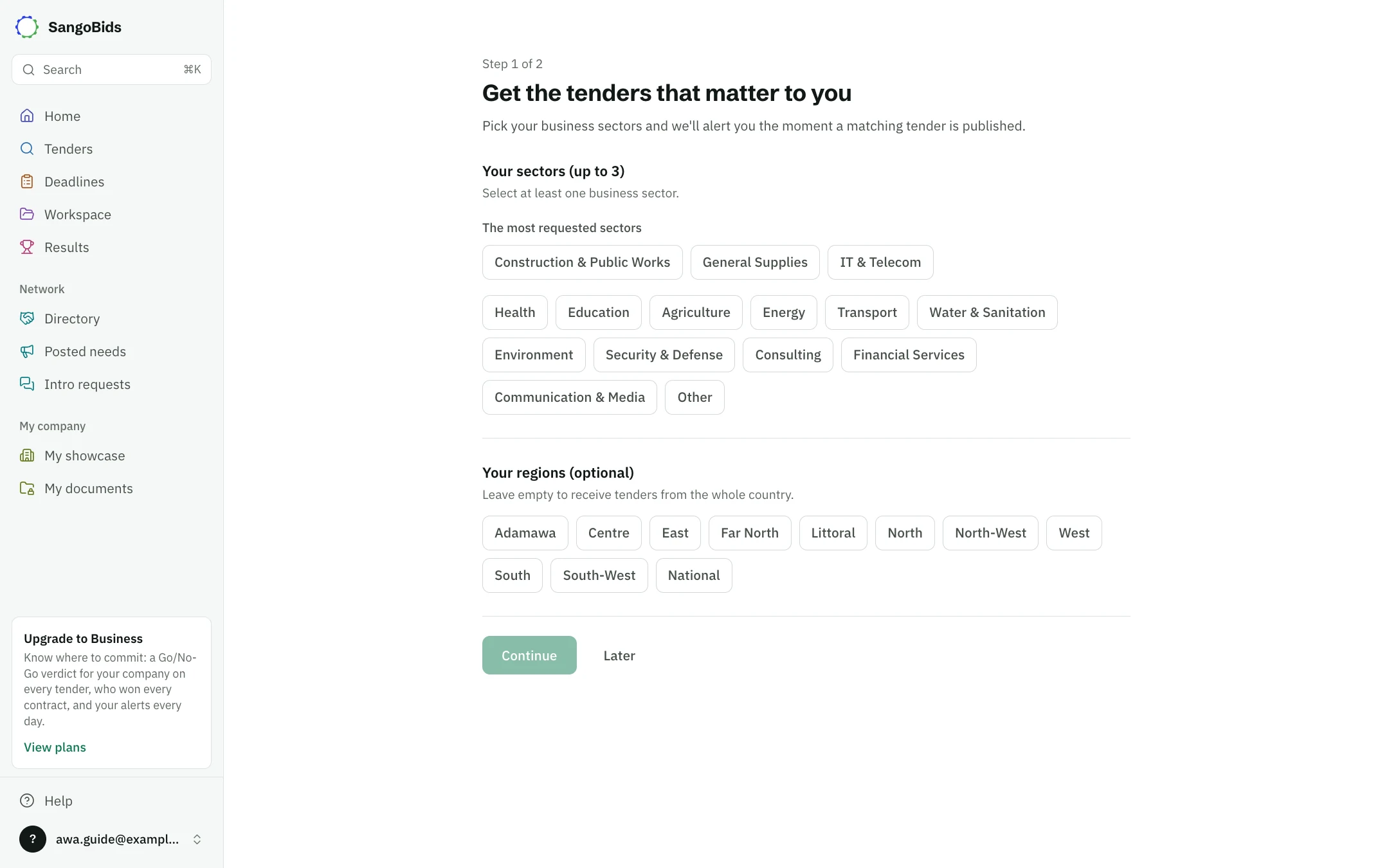
SangoBids sorts tenders for you. The first question is what makes that possible.
Computer
Phone
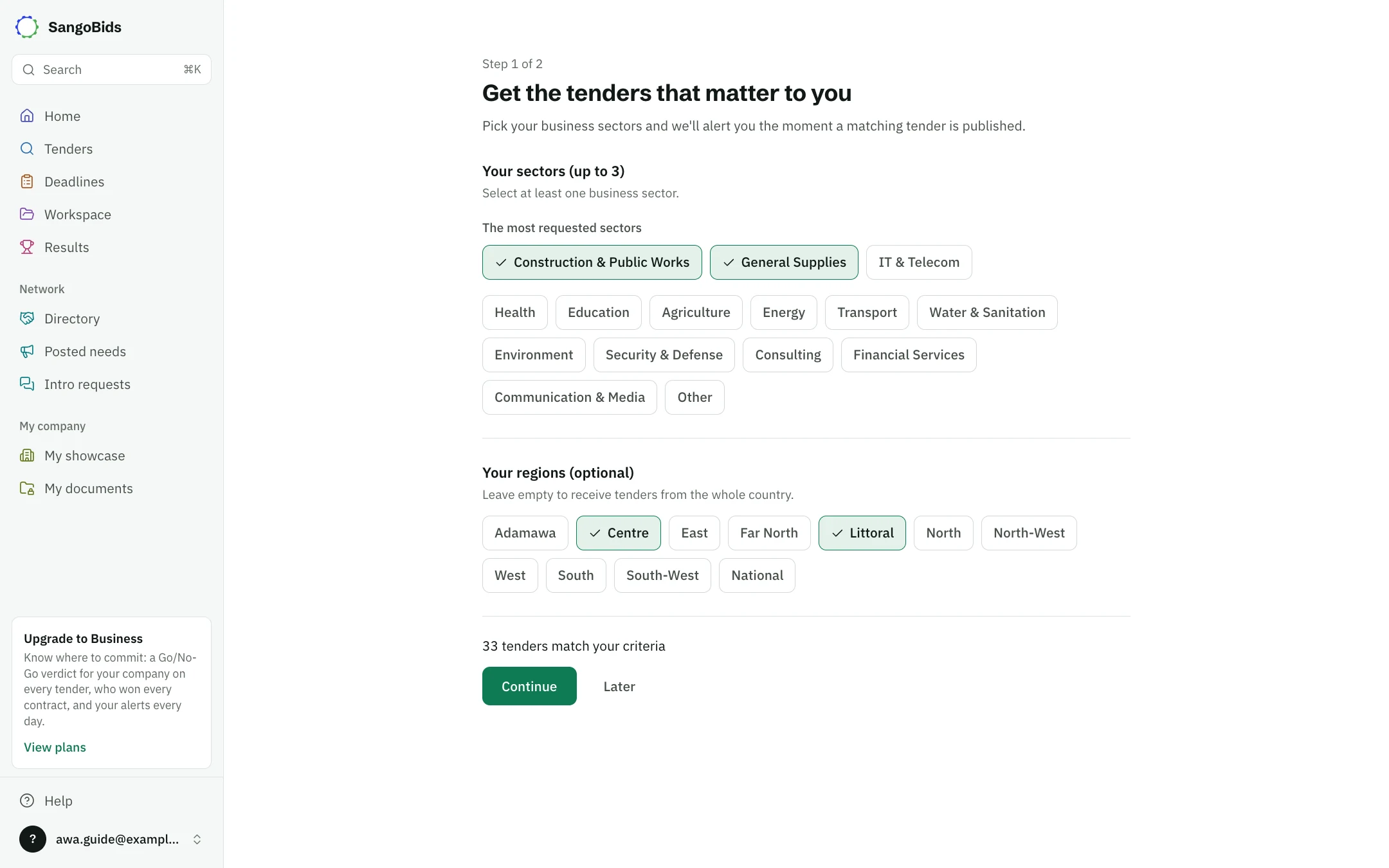
Choose up to three sectors
Pick the ones where you could file an offer tomorrow. One sector too many and your alerts fill with noise.
Add your regions if you wish
Leave them empty to receive tenders from the whole country. The counter shows at once how many tenders match.
Tap Continue
Your alerts are on. Later takes you to the home page without creating anything.
Computer
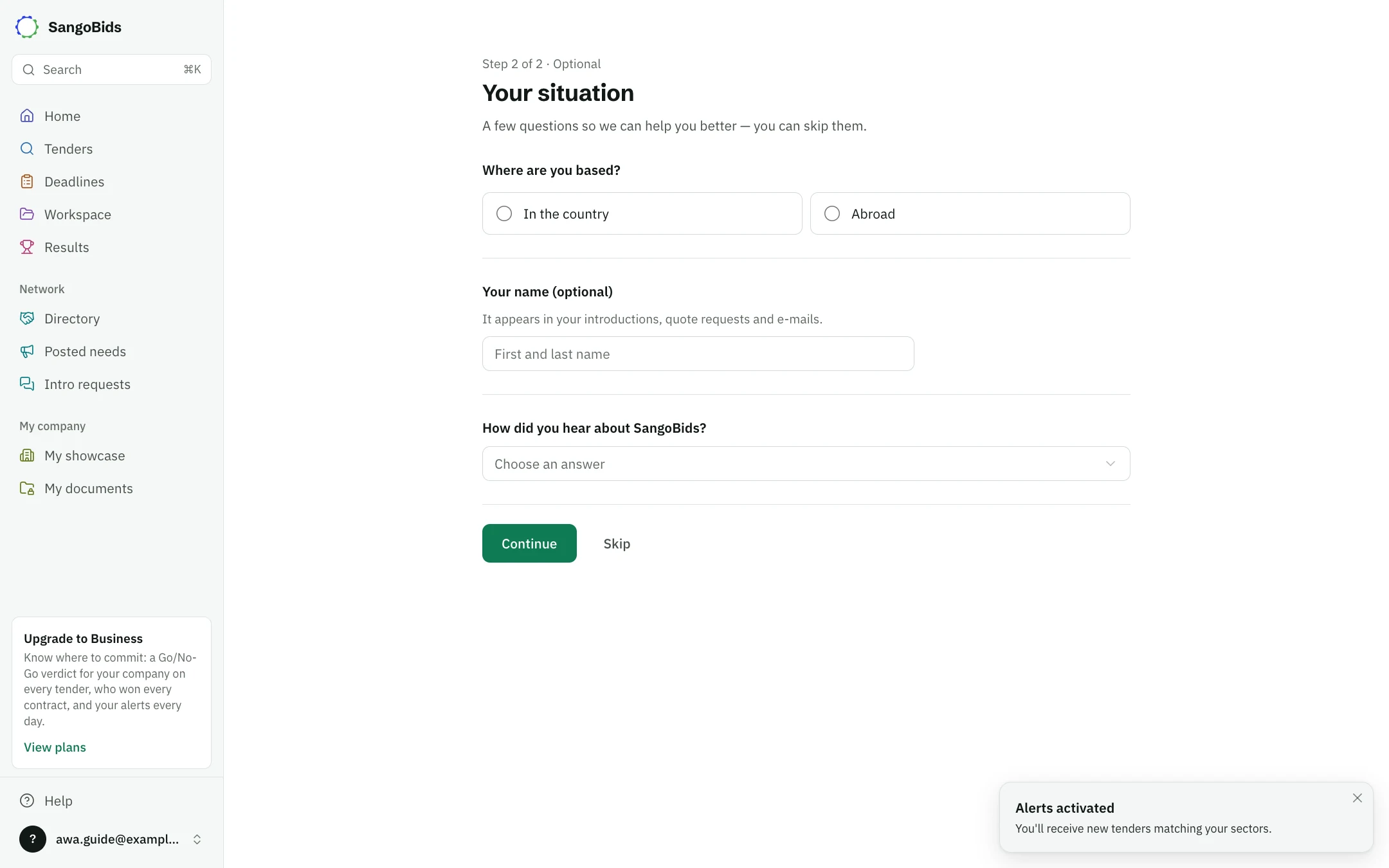
Your situation, if you like
The second step is optional: whether you are based in the country or abroad, your name, how you heard about SangoBids. Skip takes you straight to the home page.
Computer
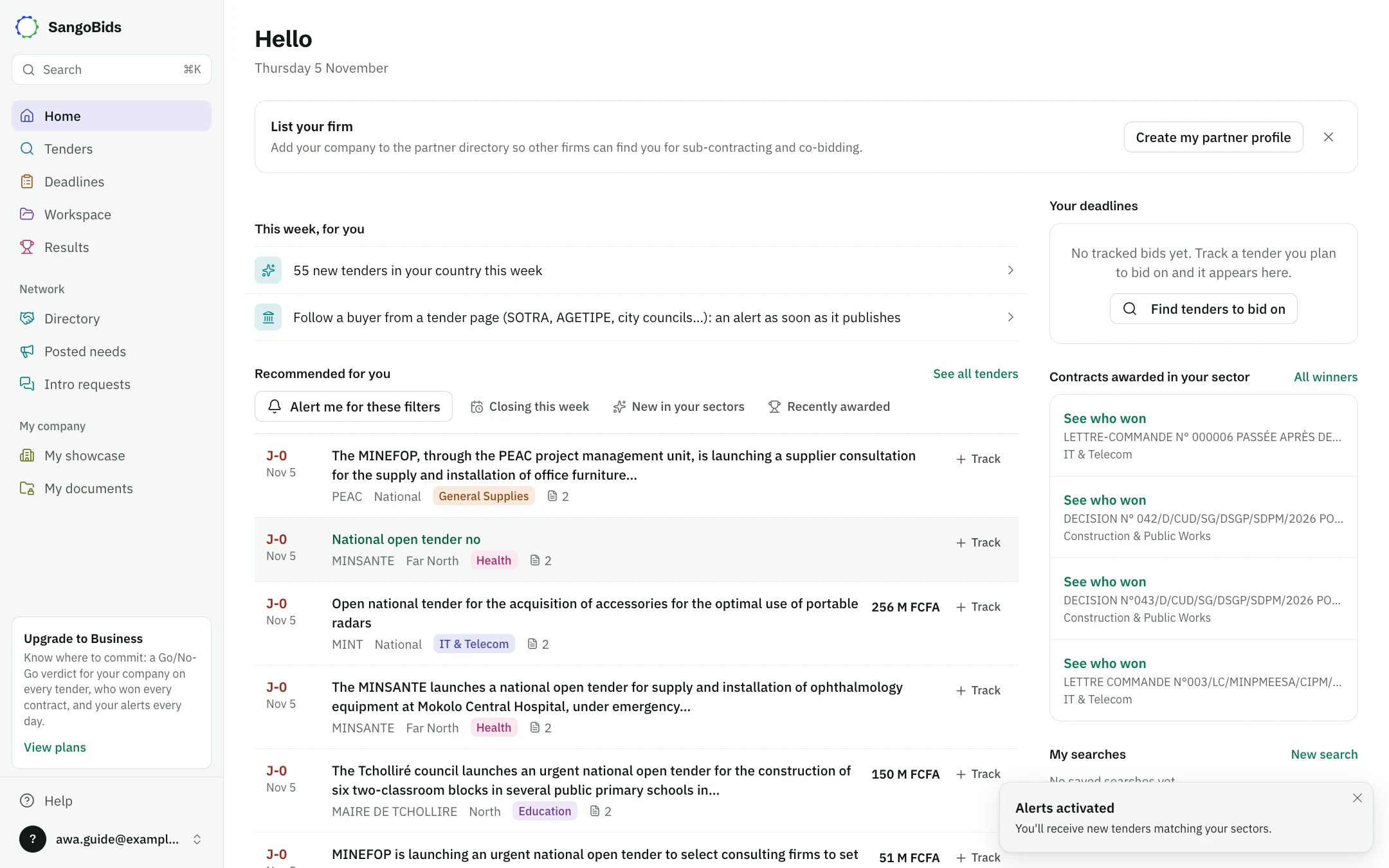
You are ready
Computer
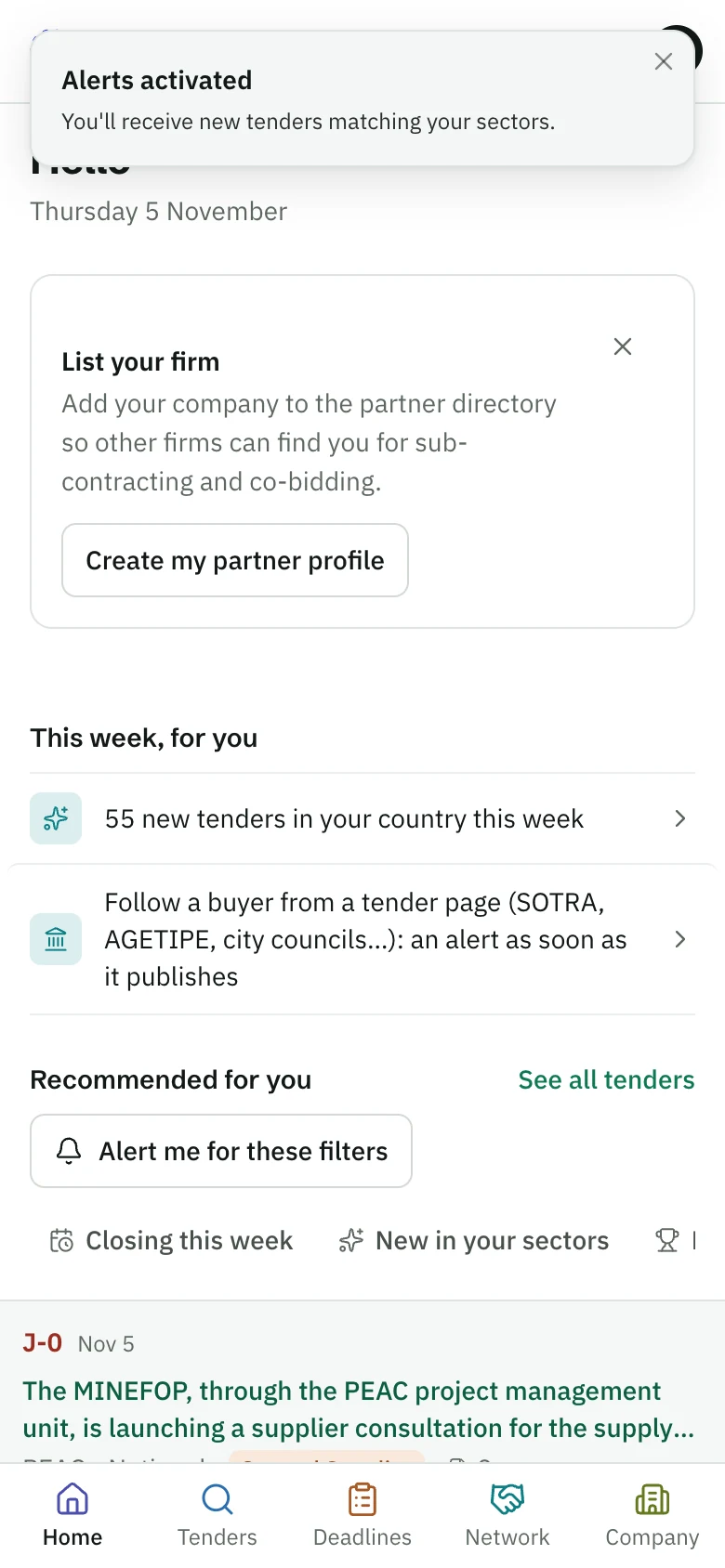
Phone
Next
See what the home page shows, then learn to search for tenders.
Read next
Ready to try?
The account is free and public tenders stay free. Three minutes is enough to receive the first ones.
Get started free