
Prepare your submission file
For every tracked tender: the document list read from the tender file, compared with your documents, the letters, the proposal, the reminder that says what is missing, and submission.
Bids are often rejected over an expired certificate or a forgotten document. For every tender you track, SangoBids lists the documents, compares them with yours and tells you what is missing before the deadline.
Open a tender's file
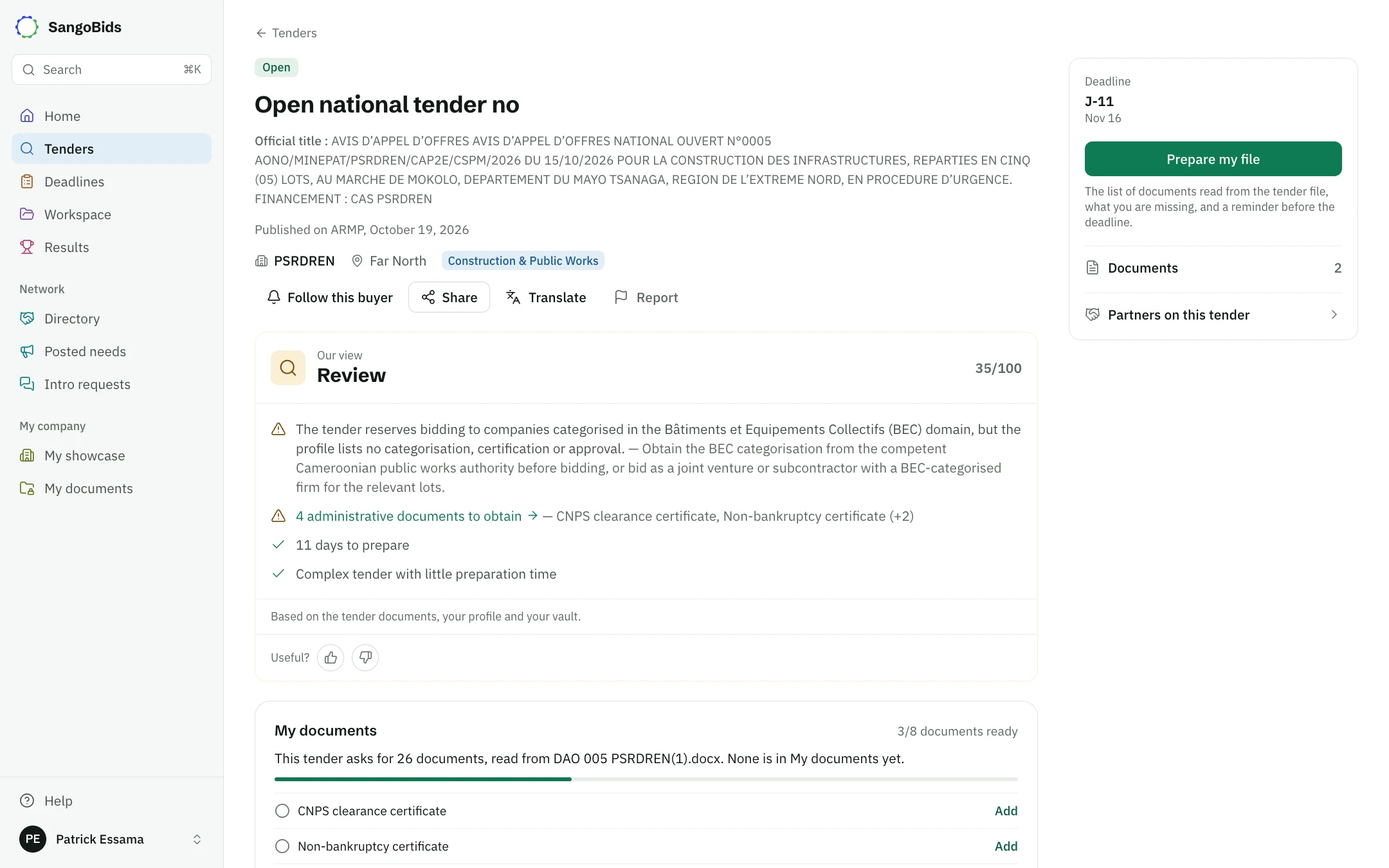
Click Prepare my file
On the tender page: right column on a computer, under the header on a phone. The tender joins your tracked tenders. Three days before the deadline, then the day before, the morning message lists what is still missing.
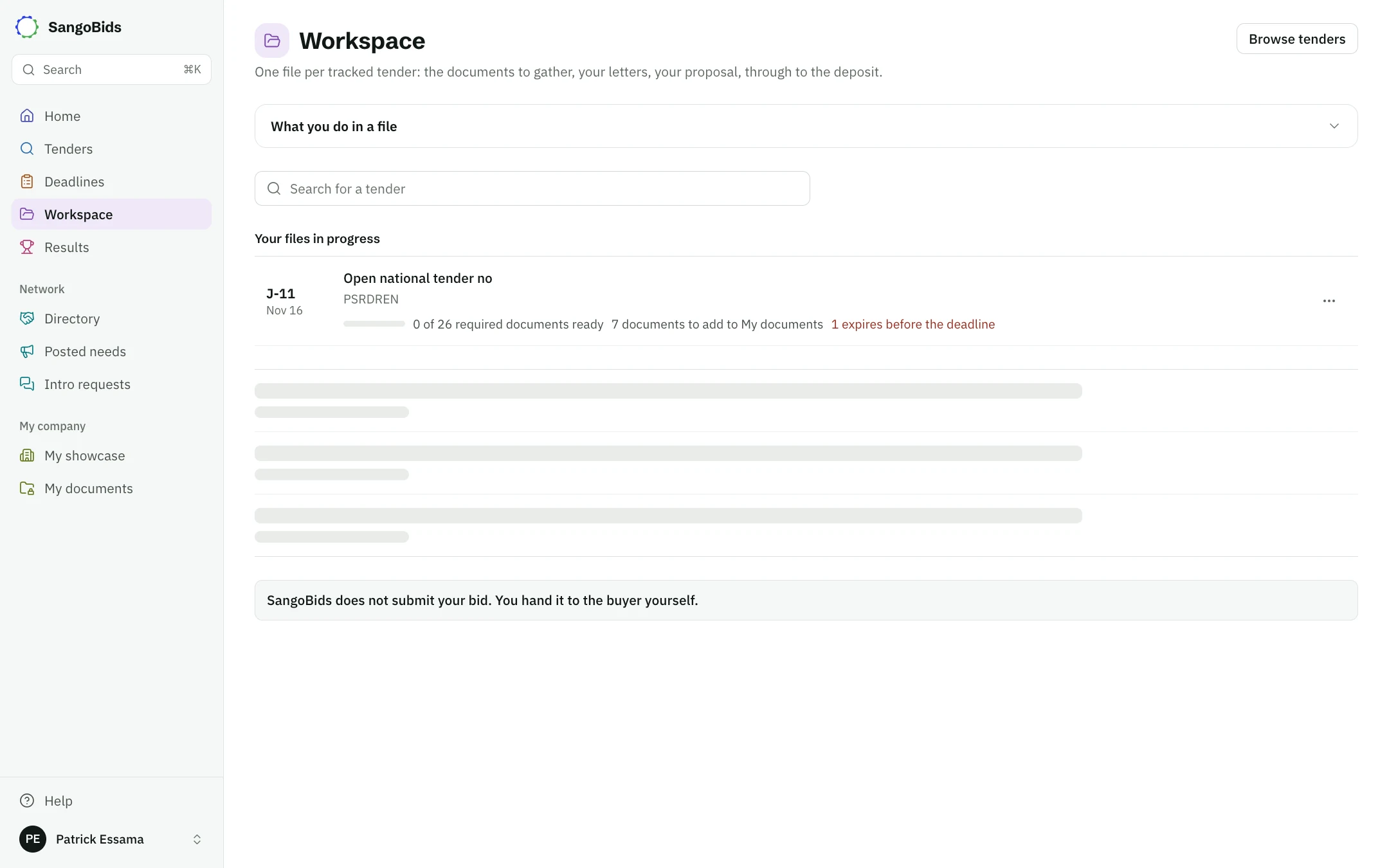
Find it in the Workspace
The Workspace menu lists your files in progress and the state of their documents.
Computer
Computer
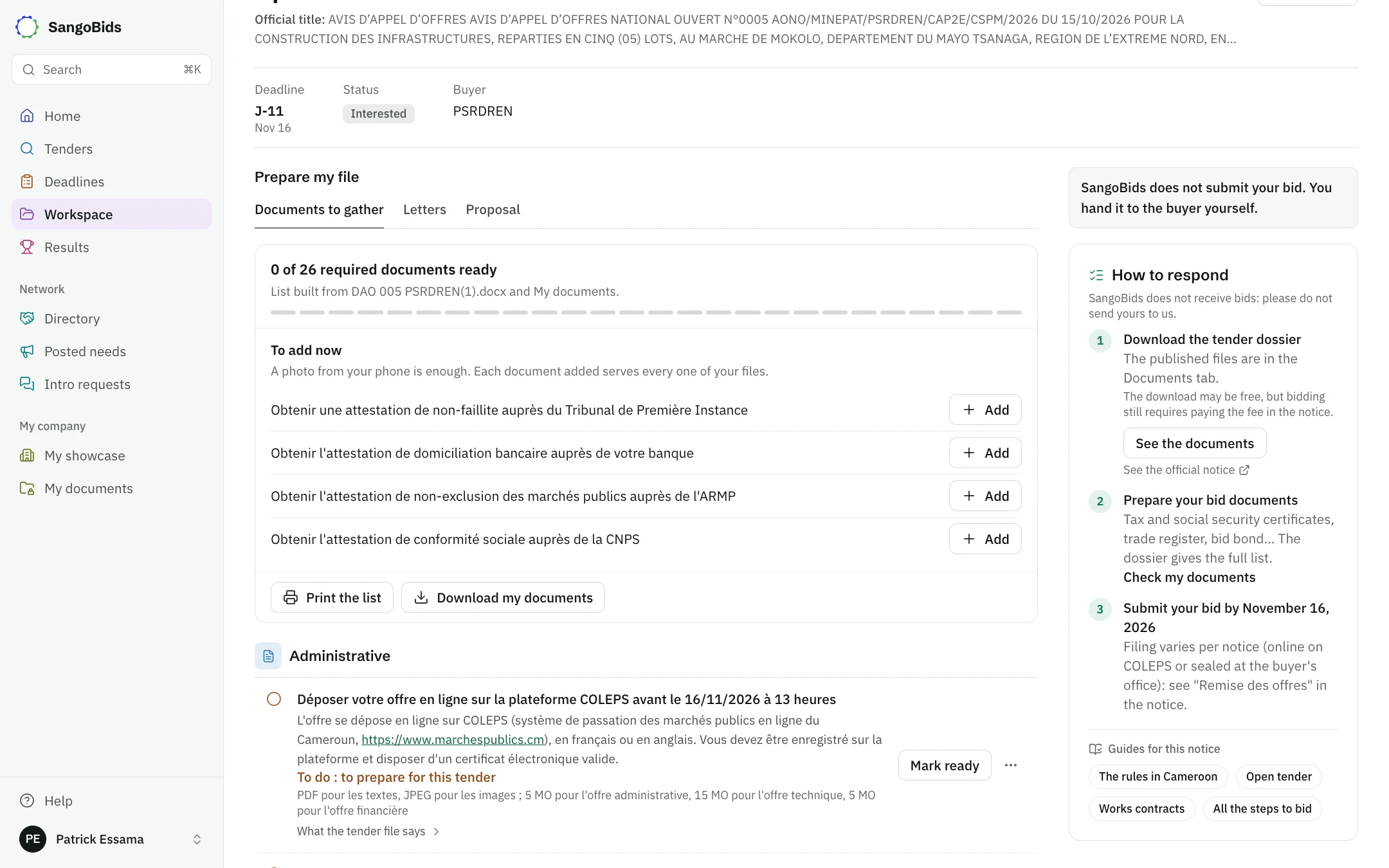
Documents to gather
When the tender file is online, the list comes from it, and What the tender file says shows the passage behind each document. Otherwise SangoBids says so and starts from the documents most requested in your country: check them against the file you get from the buyer.
Computer
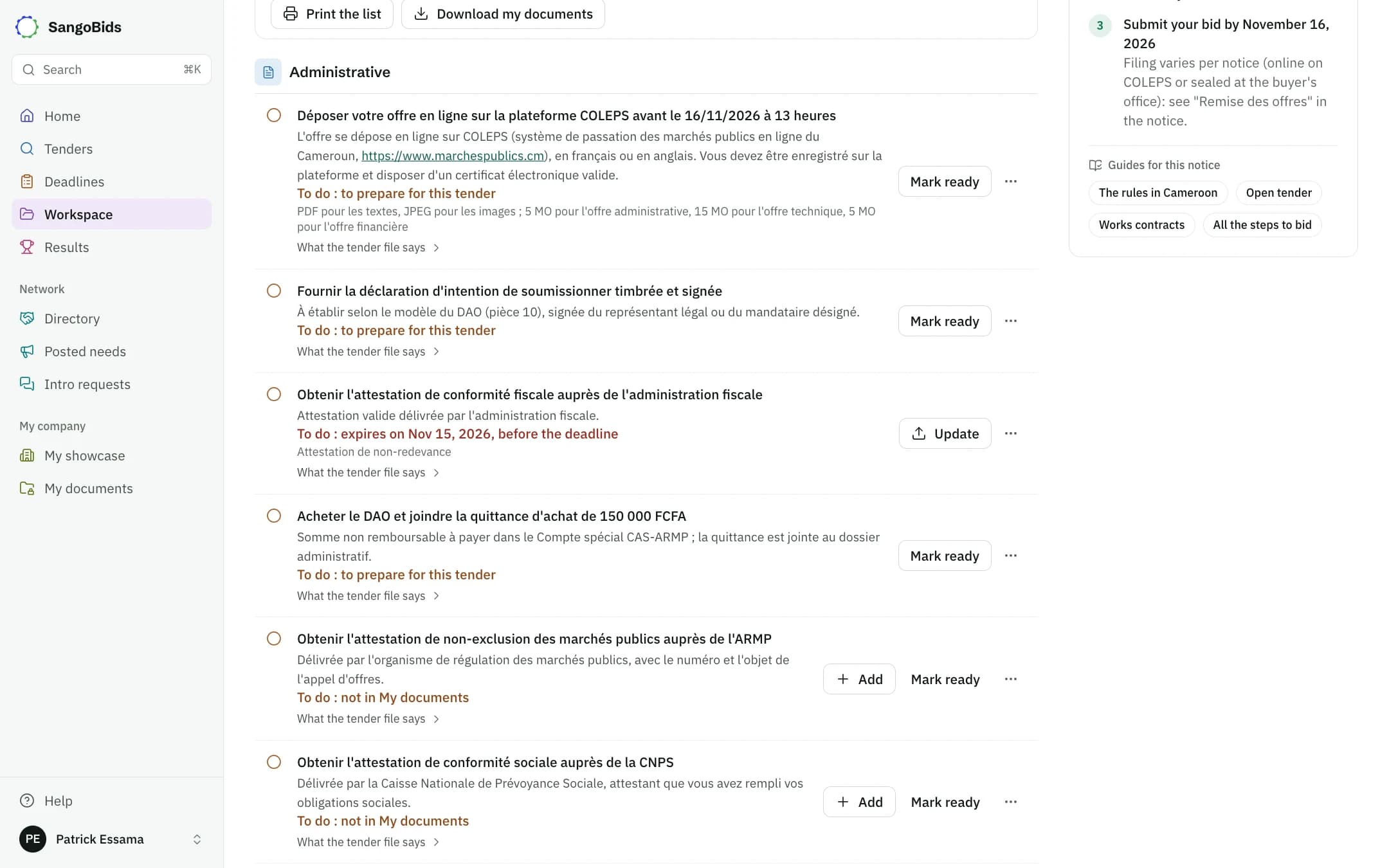
Each document has a status:
- Ready: it is there, or you marked it ready.
- To do: it is missing, or it expires before the deadline. The row says why.
- To confirm: the match with your documents is uncertain, or the date is unknown.
- Not applicable: you set it aside, so it no longer counts.
Computer
Use Add or Update on the row, and Mark ready for the rest, such as a bid bond. A photo is enough, and the document then serves all your files.
Print the list gives you a checklist. Download my documents assembles them into one PDF: free for a first tender, then included with Pro.
Letters
The submission letter and the sworn statement arrive prepared, with the items to complete. If the tender file imposes its own template, copy the text into it.
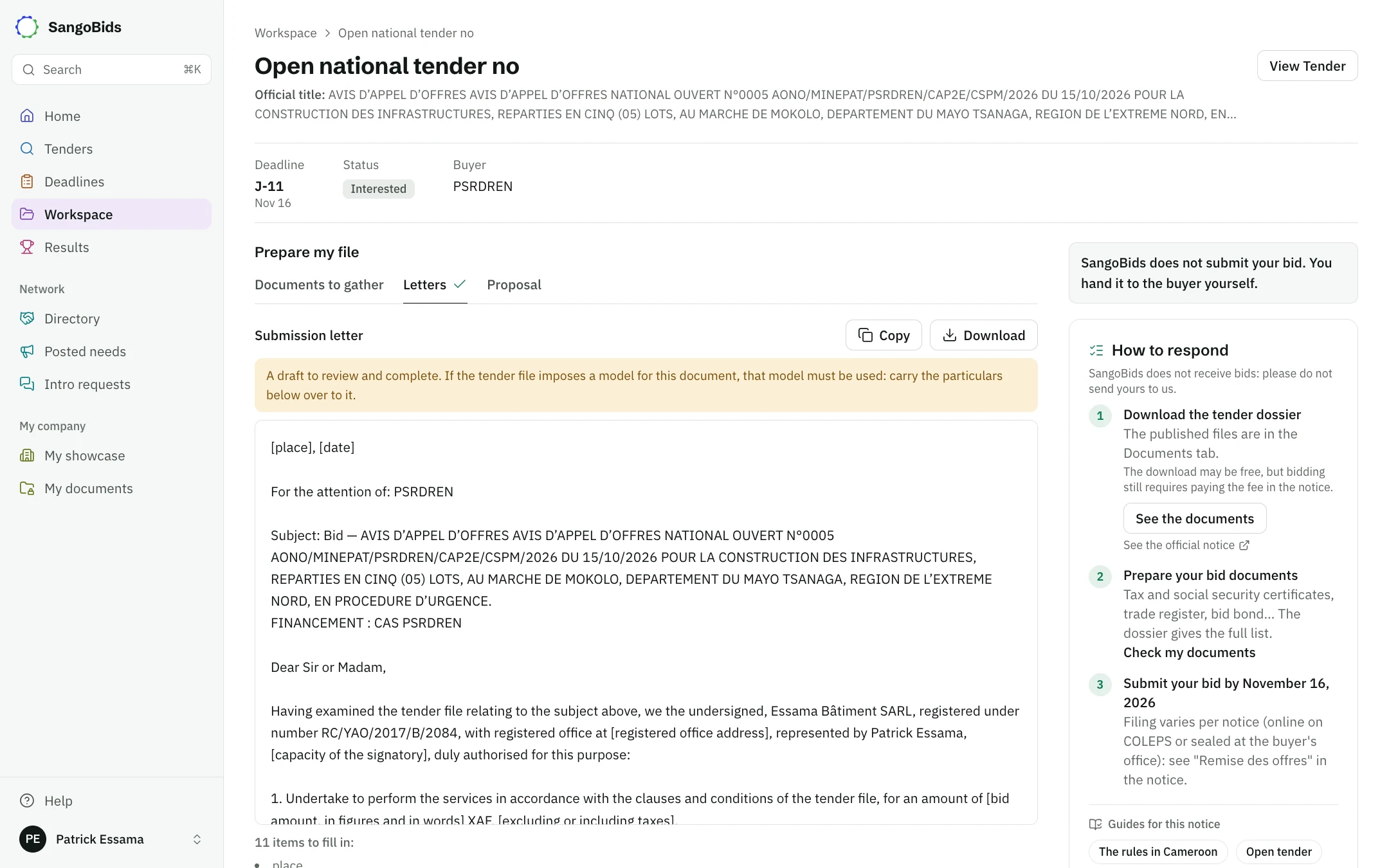
Computer
Proposal
For a written technical offer, choose Write the draft or Write it myself, or import a Word file. What SangoBids does not know stays marked to complete: it invents nothing about your company.
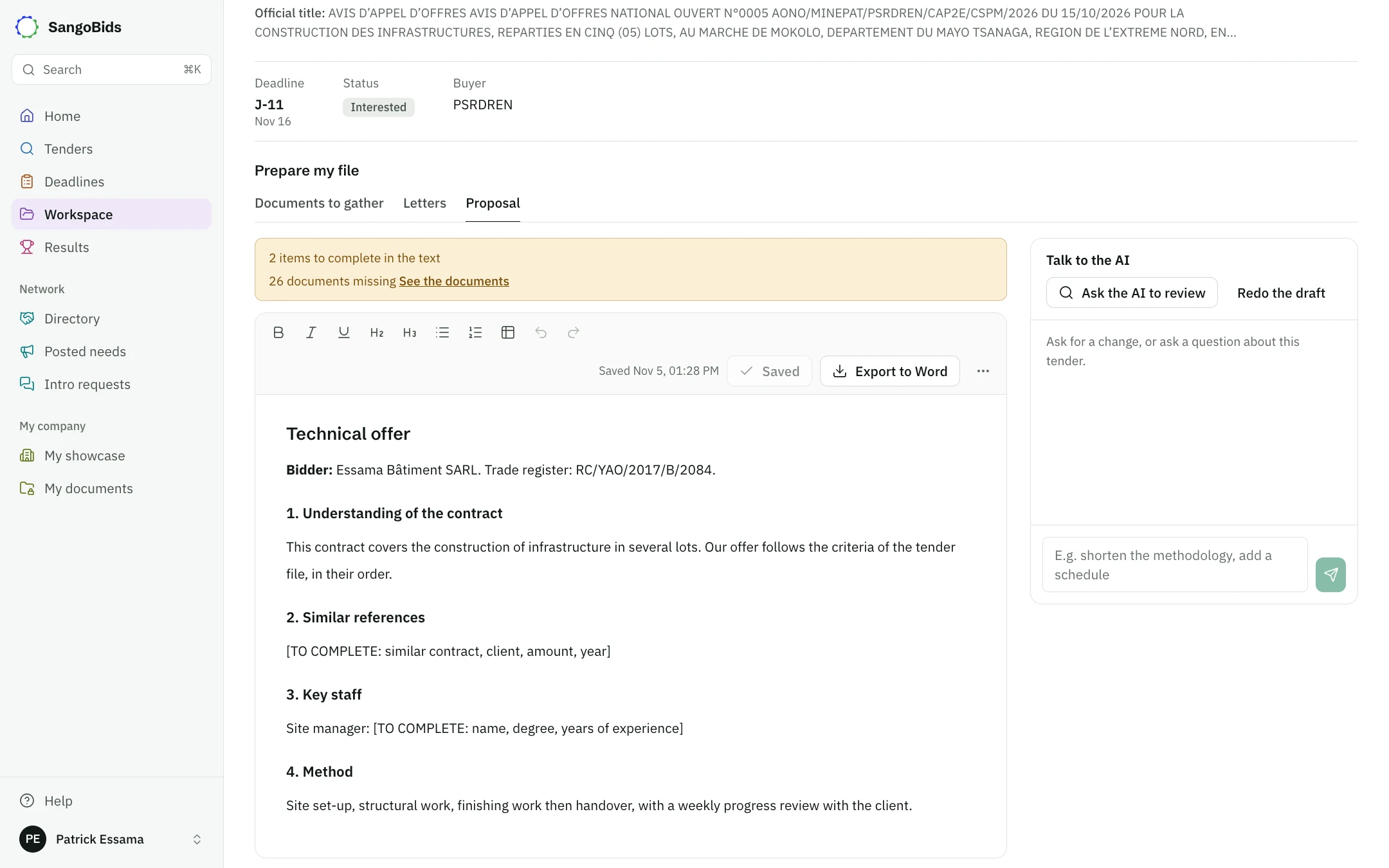
Computer
Then ask for a review (150 words minimum), keep or discard the suggested rewrites, and export to Word.
Submit your bid
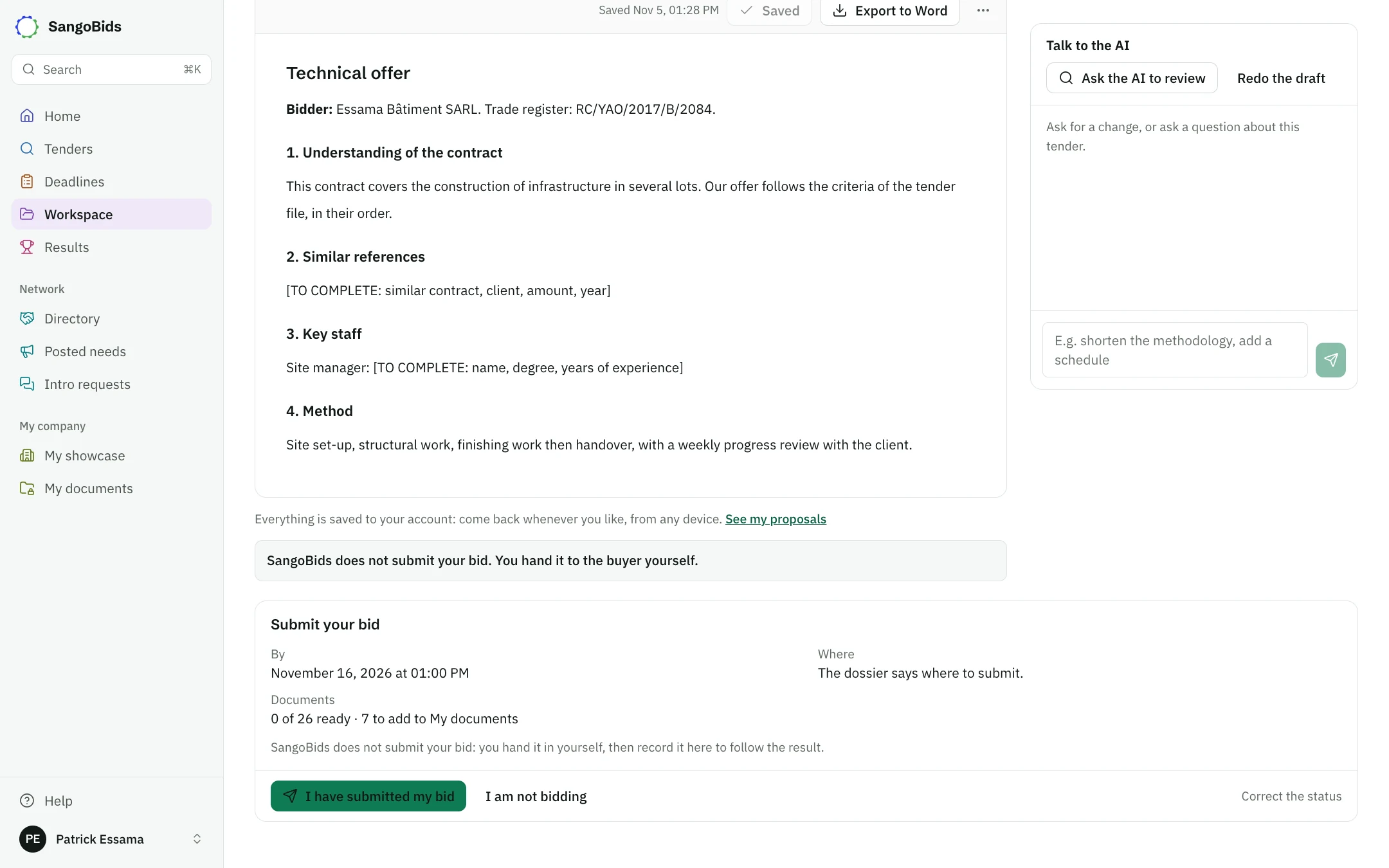
Computer
Once the bid is handed in, click I have submitted my bid: the status becomes Submitted and reminders stop. Then record the result: Contract won or Not retained. If you give up, I am not bidding removes the file from your files in progress.
What the file does not do
SangoBids does not submit your bid: you hand it to the buyer yourself. An amendment can change the list: also read the Amendments tab of the tender page.
What next
Keep your documents up to date in My documents, and read the administrative documents to provide and submitting your bid.
Read next
Ready to try?
The account is free and public tenders stay free. Three minutes is enough to receive the first ones.
Get started free