
Search for tenders
Keyword, sector, region, buyer, amount: how to go from every notice in the country to the ten that matter to you.
Every notice in the country is here, among the 4 open today. This article shows how to go from that list to the ten that concern you, and how to keep it without searching again.
The Tenders page
Open Tenders in the left menu, or in the bottom bar on a phone.
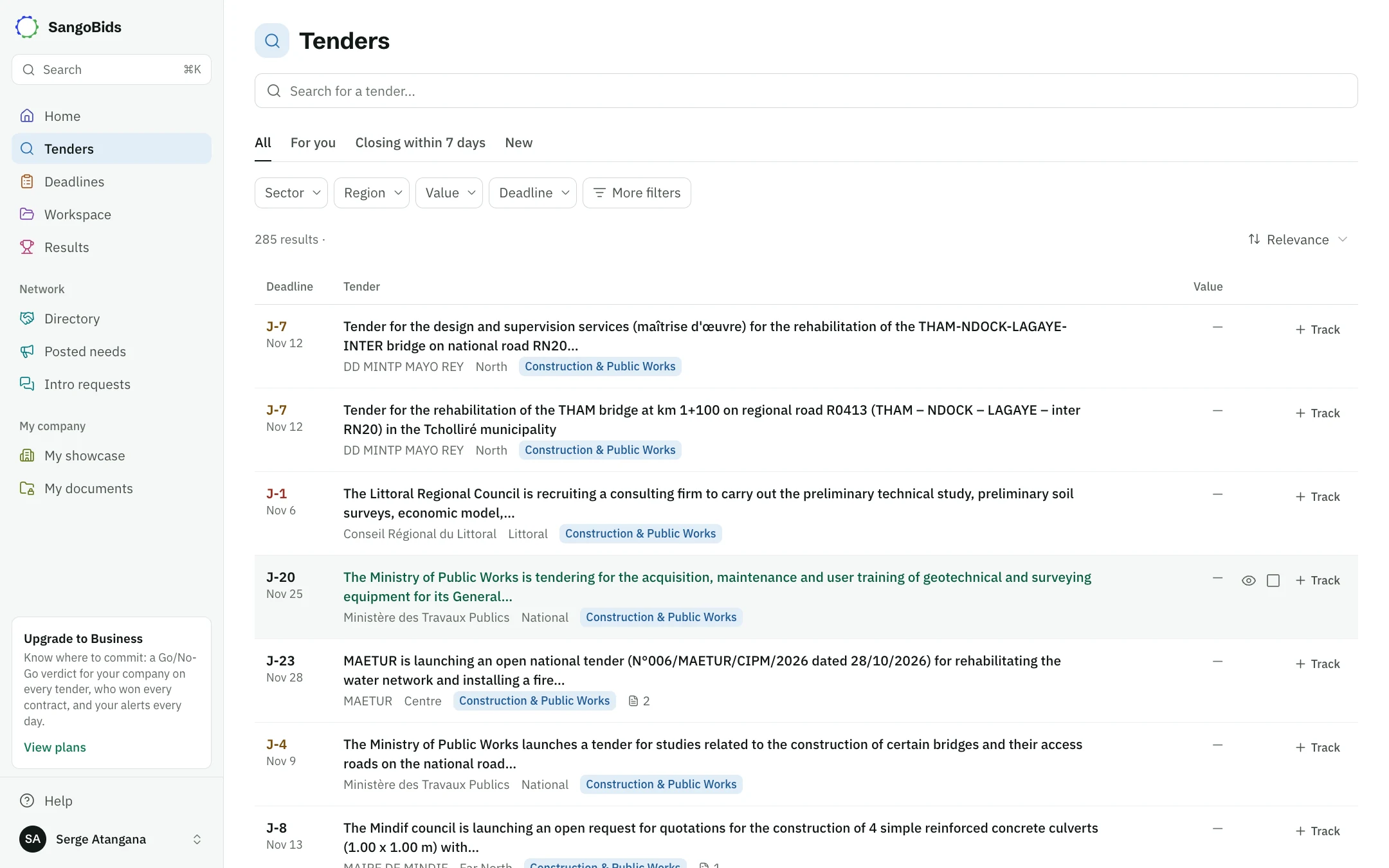
Computer
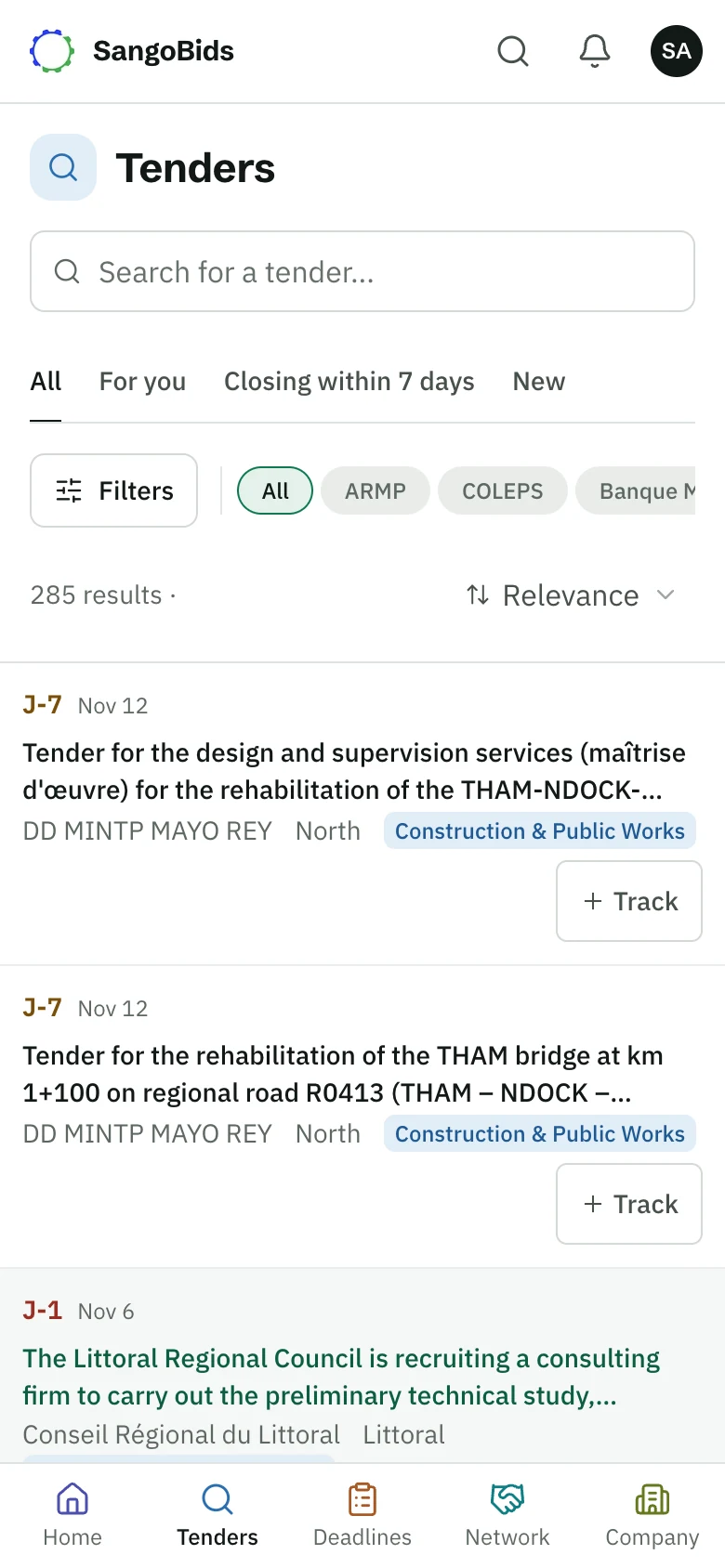
Phone
Four views at the top already sort the work:
- All: every notice.
- For you: the notices that best fit your profile.
- Closing within 7 days: the ones to decide on now.
- New: the latest published.
The menu on the right changes the order: relevance, newest, deadline or amount.
Search and filter
Type a word
A word from the tender, a reference or a buyer's name: "borehole", "road", "CNPS". Accents and capitals do not matter.
Narrow with the filters
On a computer they sit above the list: Sector, Region, Amount, Deadline, and More filters for the rest, such as Origin (public, private, donors). On a phone, the Filters button brings them together; Apply is at the foot of the sheet.
Watch the counter
Each choice shows its number of notices. Too many results: add a region. None: remove a filter, or tap Alert me when one appears.
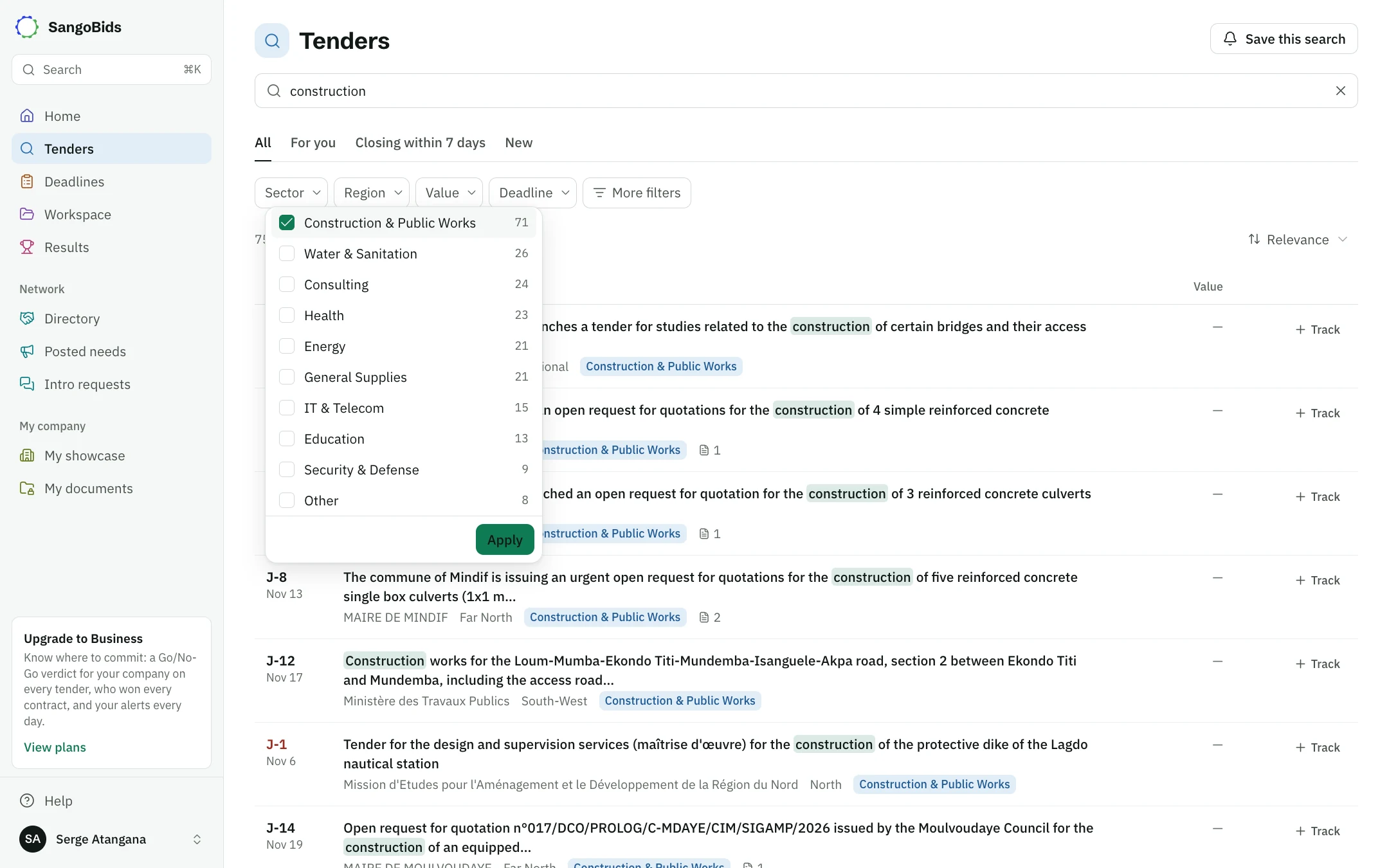
Computer
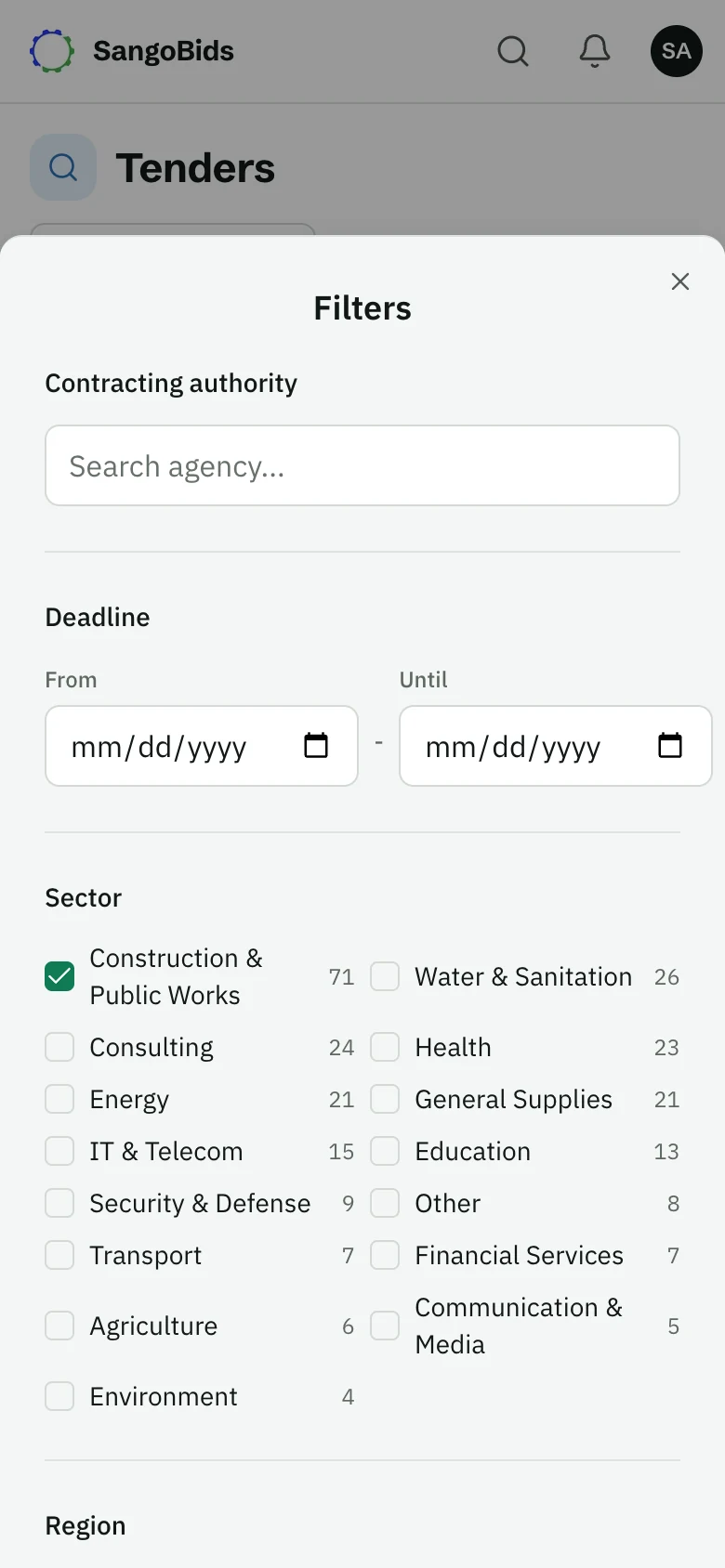
Phone
Read a row
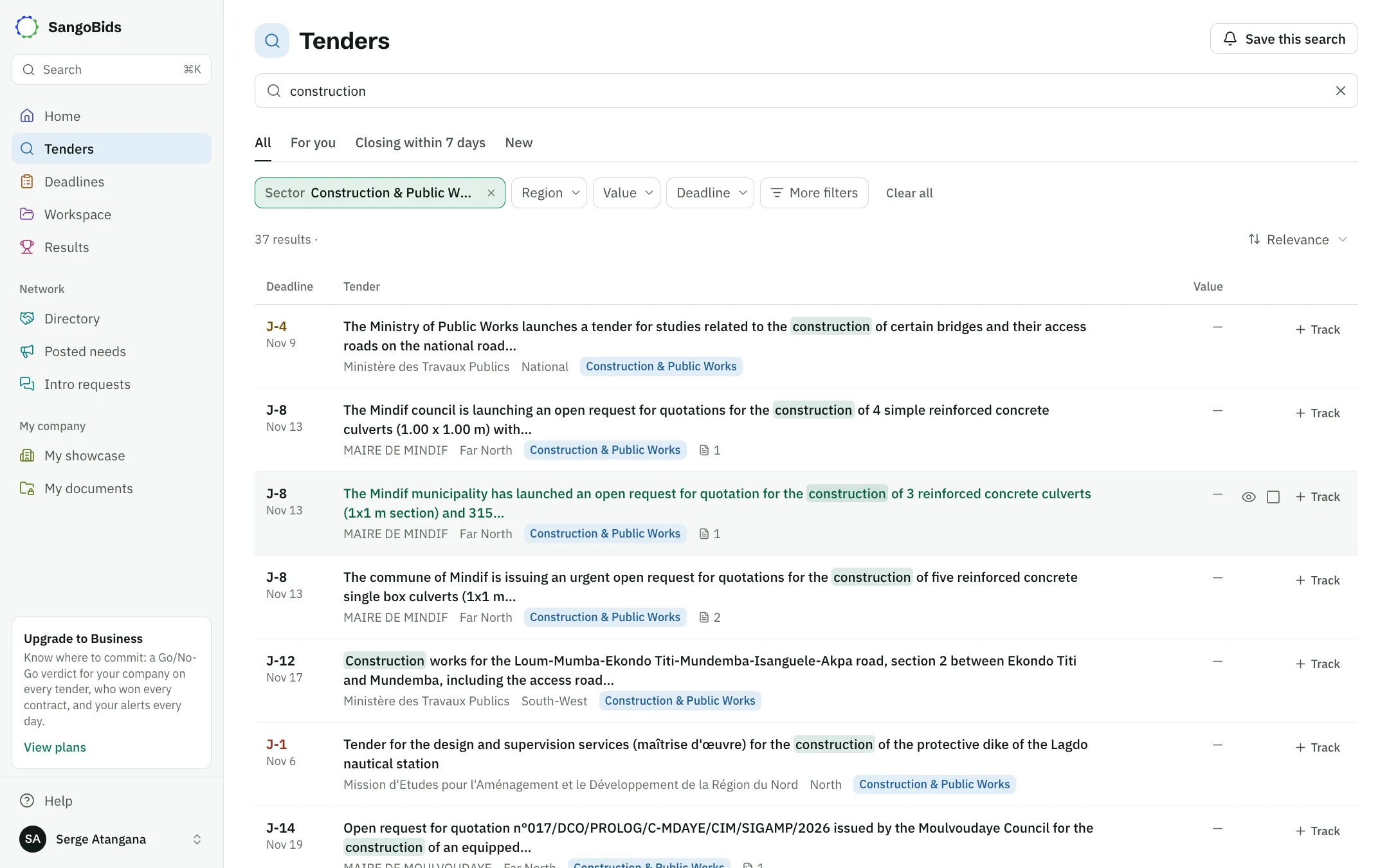
Computer
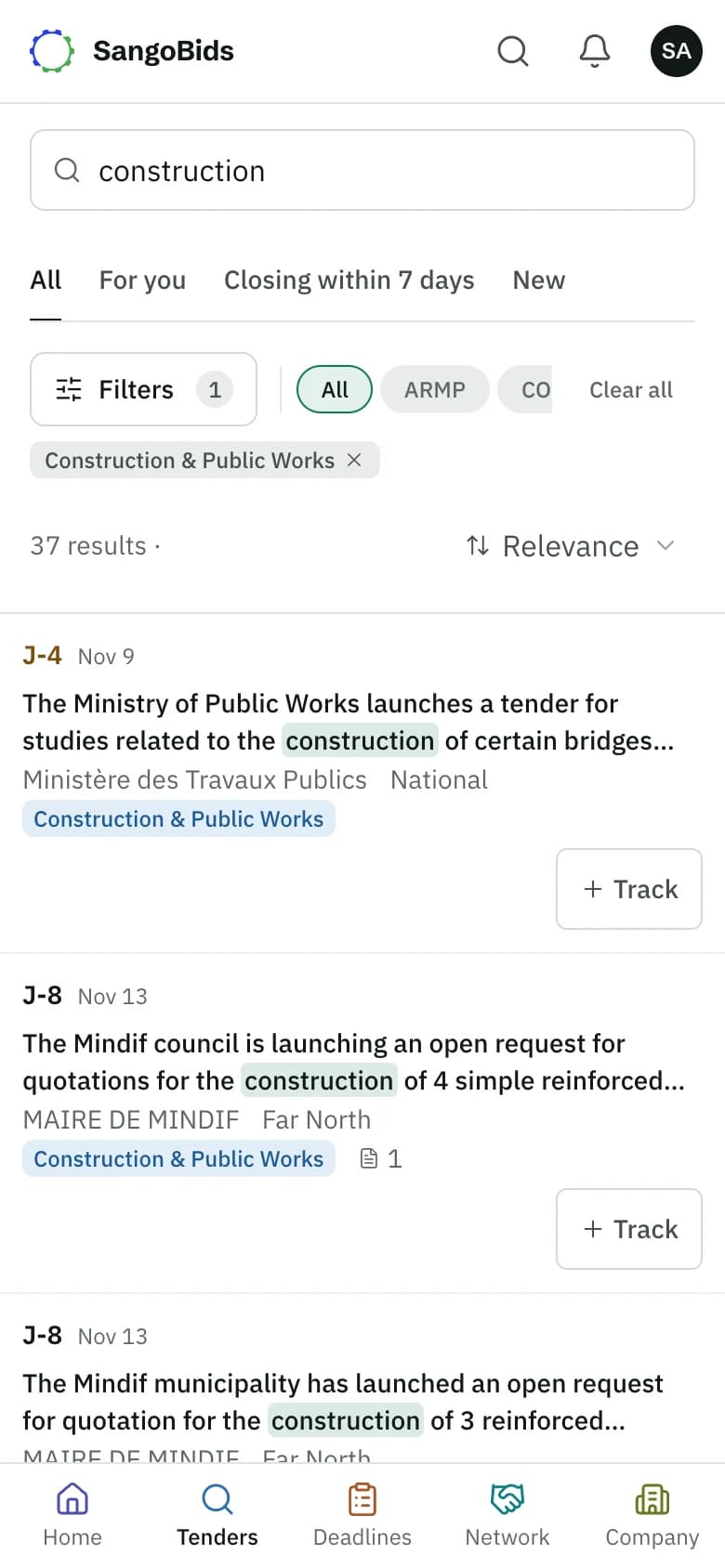
Phone
- J-12: the days before the deadline. It turns orange at 7 days and red at 3 days.
- The title is rewritten to read fast. The official title stays on the tender page.
- The buyer, region and sector, and a small icon with the number of documents available.
- The amount appears only if the notice published it, and many do not.
- Track adds the tender to your deadlines without opening the page.
On a computer, on hover, the eye gives a preview without leaving the list, and the box adds the tender to the comparison (three at most), opened with Compare.
Keep your search
As soon as a filter is on, Save this search appears at the top of the page. Every saved search is also an alert: new notices that match come to you.
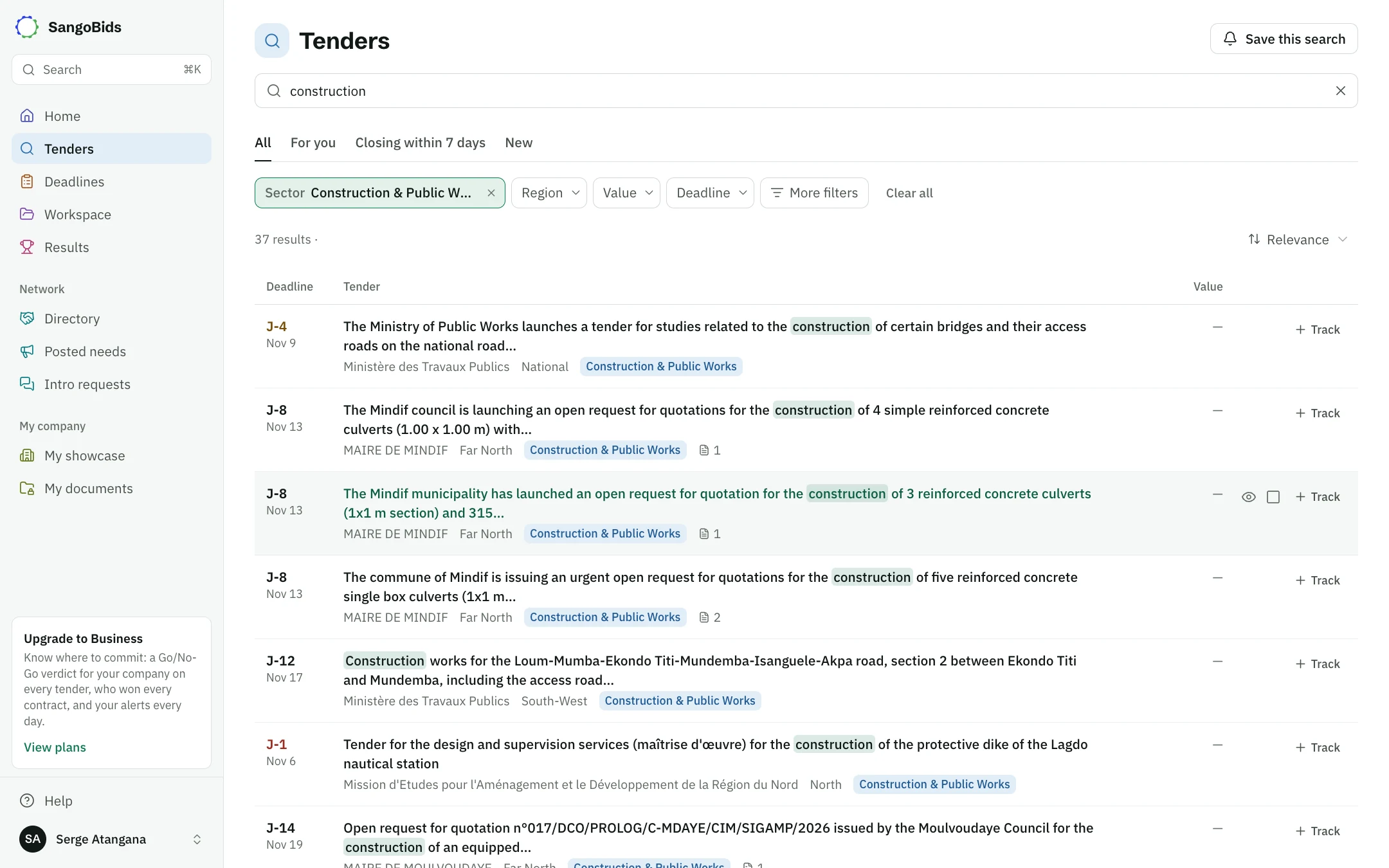
Computer
The Free plan allows 3 saved searches, paid plans an unlimited number. Find them in your account menu, under Saved Searches.
Next
Open a result and learn to read the tender page, or set up your alerts.
Read next
Ready to try?
The account is free and public tenders stay free. Three minutes is enough to receive the first ones.
Get started free